
Before / After Comparison
Before/after comparison for your entire website
Create a "before" snapshot of your website and automatically compare it with the current state after a deployment, migration, or redesign. With PDF report and live updates during processing.
Why Before / After Comparison?
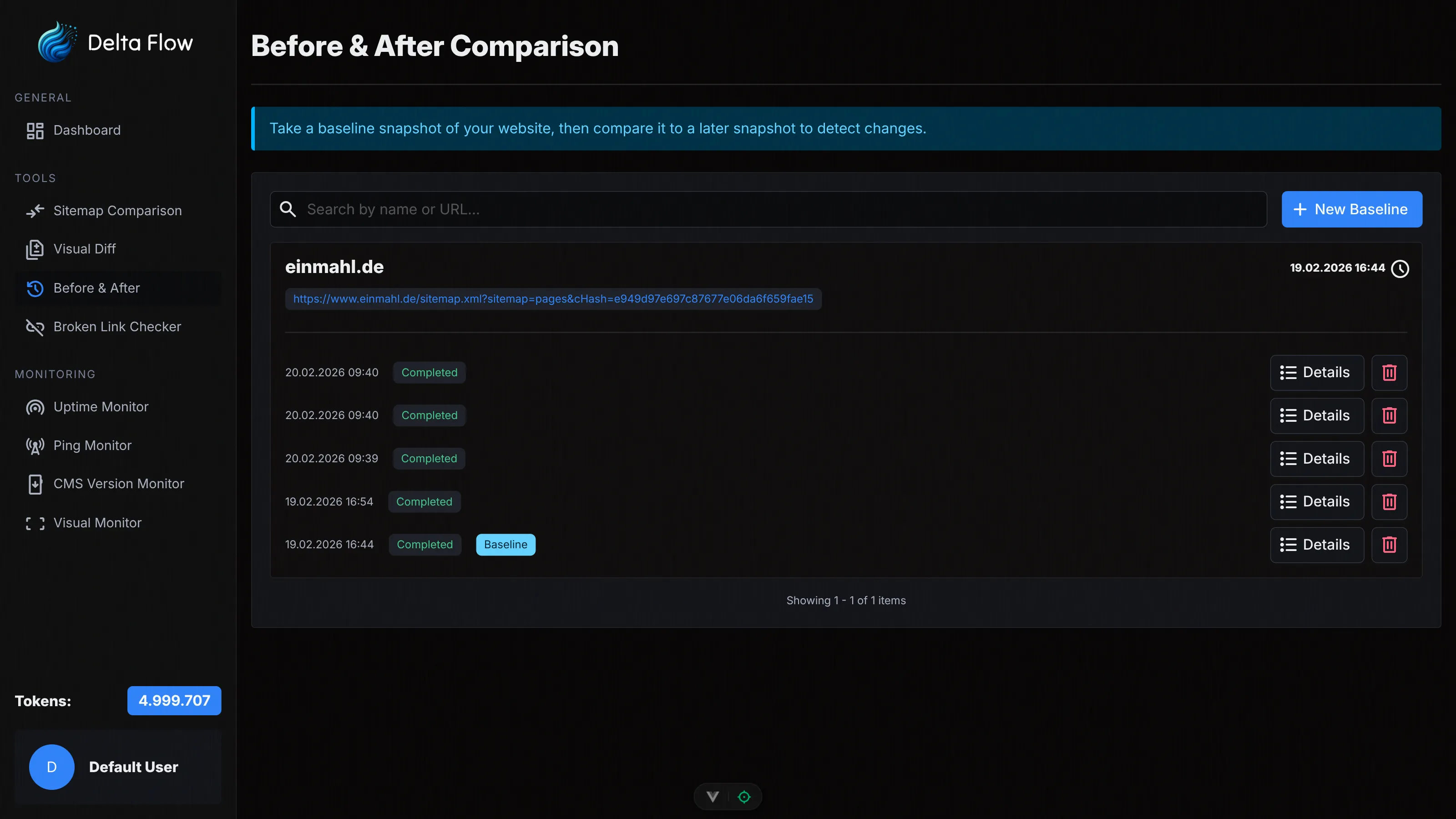
Before a deployment, you often don't know what will visually change afterwards. With the Before / After Comparison, you first create a baseline snapshot – and compare it with the new state after the deployment. This lets you immediately see what has changed.

Create Baseline
Capture the current state of your website as a reference baseline – before making any changes. All screenshots are stored and used as a comparison foundation.

Automatic or Manual
Load URLs automatically via a sitemap or enter them manually. Both modes can be combined and the URL list can be edited at any time.

PDF Report
Generate a comprehensive PDF report after the comparison with all screenshots, diff images, and change percentages – perfect for documentation and presentations.
Features in Detail
Automatic Sitemap Mode
Enter a sitemap URL and the system automatically loads all included URLs. The list is editable – you can remove or adjust individual URLs before the comparison starts.

Manual URL Mode
Specify a base URL and add URLs manually via input. Convenient for targeted comparisons of individual pages without a sitemap. When switching modes, you are asked whether to keep existing URLs.

Baseline Concept
The first run creates reference screenshots (baseline) for all URLs. Each subsequent comparison references this baseline and shows you exactly what has changed since then.

Viewport & Capture Settings
Configure viewport width, height, and device scale factor. Optionally disable JavaScript or block ads and cookie banners for consistent results.

AI Description
Enable AI-generated descriptions for detected changes. The AI explains in natural language what has changed on each page – ideal for reports and documentation.

Configure Thresholds
Set minimum change percentages (0%, 1%, 5%, 10%, 25%, 50%) to receive only relevant changes. Small visual fluctuations are filtered out this way.

How It Works
Configure Comparison
Enter a name and choose between automatic (sitemap) or manual URL mode. Configure Basic Authentication, viewport settings, thresholds, and optional AI descriptions.

Create Baseline
Start the first run to create before-screenshots for all URLs. The system shows progress in real time. Once the baseline is ready, you can start the actual comparison.
Make Changes
Deploy your update, perform the migration, or make your changes. The baseline remains stored and waits for the comparison.
Start and Analyze Comparison
Start the comparison – the system captures new screenshots and compares them with the baseline. Results appear live, you see the change percentage, diff images, and AI descriptions per page. Finally, generate a PDF report.

Technical Details
Baseline Concept
The first run stores reference screenshots of all URLs as the baseline. Each subsequent comparison references the original baseline – keeping your results consistent and traceable.
Parallel Processing
All URLs are processed in parallel for maximum efficiency. Even large URL lists with many pages are processed quickly and reliably.

WebSocket Real-Time Updates
Results appear live in the dashboard via WebSocket during processing. You see progress and results in real time – without manual page refresh.
Token Check Before Start
Before starting, the system automatically checks whether sufficient tokens are available for the comparison. You see the expected token consumption transparently before execution.

Basic Authentication
Separate credentials configurable for the entire comparison session. This allows even protected staging or development environments to be reliably checked.
Viewport Simulation
Configurable viewport sizes and device scale factors ensure consistent screenshots. Simulate desktop, tablet, or mobile devices for realistic comparisons.
Choose Your Plan
All plans include access to all tools. The difference lies in the number of monthly tokens and maximum monitors.
Frequently Asked Questions
Ready to Get Started?
Create your first baseline today and compare your website before and after your next deployment.